A tour of TIDE, the terminal IDE for AI agents
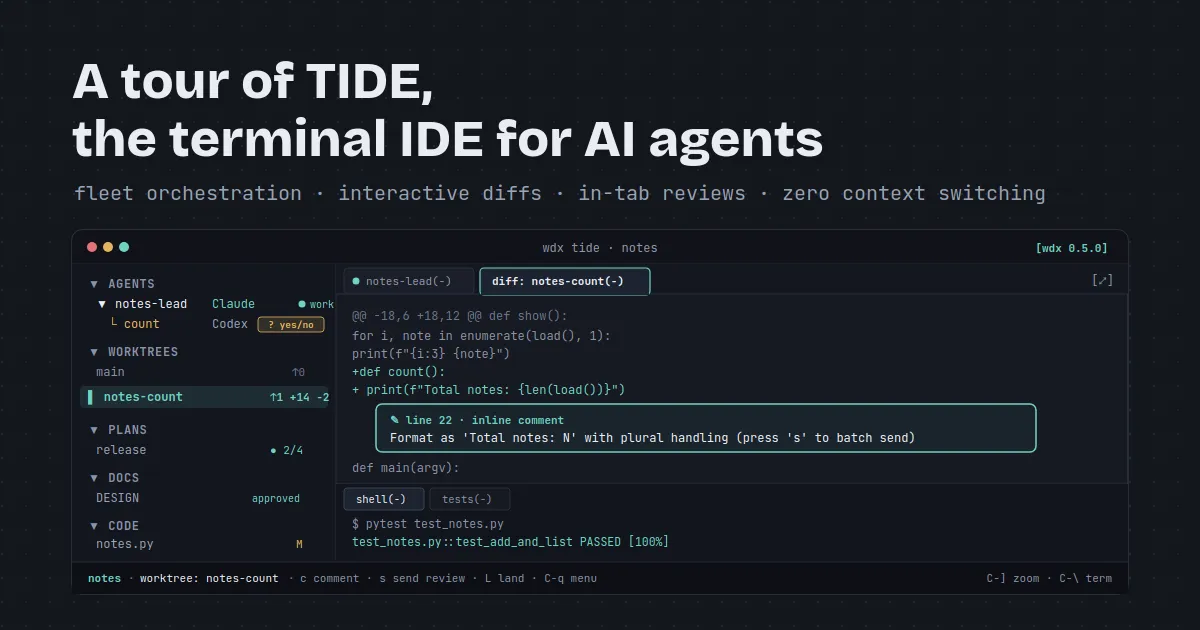
Running multiple AI coding agents from raw terminal tabs quickly turns into a blind juggling act: you can’t tell who is waiting on a prompt, whose git diff is whose, or which agent is silently burning through its context window.
TIDE—wdx’s Terminal IDE—pulls your entire agent fleet into one window: agents, worktree diffs, code, docs, plans, and shells, with zero context switching and no mouse required.
The problem with terminal tabs
Section titled “The problem with terminal tabs”When you run three or four AI coding agents across multiple terminal windows or tabs, friction compounds rapidly:
“i use gnome terminal on my ubuntu and iTerm2 on mac on daily basis”
In traditional workflows across GNOME Terminal or iTerm2, running multiple agents usually means:
- Invisible blockers: An agent stops in tab 4 to ask whether it should run a database migration or install a package. Unless you actively cycle through every tab, it sits idle for twenty minutes waiting for a simple
yes. - Context fragmentation: You lose track of which branch belongs to which prompt, and inspecting an agent’s changes requires leaving the conversation to run manual
git diffcommands in a separate shell. - Lost sessions: If your terminal closes, SSH drops, or your laptop sleeps, interactive agent sessions running directly in foreground tabs often die abruptly.
TIDE (wdx tide) is designed specifically around how AI coding agents work. Built directly into the wdx binary, TIDE is an interactive Bubble Tea terminal application that talks to the local background daemon. Agents and shells run in daemon-managed PTY holders—not inside your terminal window. Quitting TIDE leaves every agent working uninterrupted, and reopening wdx tide restores your exact layout, open tabs, cursors, and running processes.
The three-pane layout
Section titled “The three-pane layout”TIDE replaces ad-hoc tab sprawl with a purposeful three-pane layout that dedicates space to project navigation, agent interaction, and system shells:
The interface is structured into three distinct zones:
- The Project pane (left, 1/4 width): Your project’s central navigator. It organizes your work into five collapsible sections: Agents, Worktrees, Plans, Docs, and Code. You can reorder or toggle any section with the
tide.section_ordersetting. - The Agent workspace (right, 3/4 width): A tabbed canvas where live work happens. Each tab holds a live agent PTY, a git diff, a rendered Markdown doc, an interactive task graph, or an in-tab terminal editor.
- The Terminal drawer (bottom, 1/4 docked height): Project terminals and test runners docked at the bottom. Toggle it into view or hide it instantly with
C-\.
Key interception philosophy
Section titled “Key interception philosophy”Because agents and terminal editors require direct keystroke passthrough, TIDE takes almost zero global keys for itself:
| Shortcut | Action |
|---|---|
Alt+← Alt+→ |
Cycle focus between the project pane and open workspace tabs |
Alt+↑ Alt+↓ |
Jump into the docked terminal drawer and back to the active workspace |
C-] |
Zoom the focused pane to fill the entire window (and back) |
C-\ |
Toggle the terminal drawer open or closed |
C-q |
Open the single-letter contextual action menu |
C-q q |
Quit TIDE (all background agents and holders keep running) |
In the project pane, single letters dispatch common actions directly without C-q: a creates a new agent, t opens a new terminal, s jumps to settings, / starts fuzzy filtering, and q exits. Inside agent and shell panes, every single keypress is forwarded untouched to the underlying program.
Mouse support and persistence
Section titled “Mouse support and persistence”While optimized for keyboard navigation, TIDE includes full mouse support:
- Click any pane to focus it, or click a row or tab to select it.
- Scroll through conversation histories, diffs, and files with the mouse wheel.
- Double-click any pane’s frame (or its
[⤢]indicator) to toggle full-screen zoom. - Click and drag text within any pane to select and copy directly to your system clipboard via OSC 52.
The full agent lifecycle
Section titled “The full agent lifecycle”The core strength of TIDE is orchestrating an agent’s entire lifecycle without ever leaving your terminal:
“agents and plans, mostly the ease of use with tide makes life easier”
“i check the diff and leave comments for the agent”
Here is what that lifecycle looks like in action on our toy notes repository: a lead coordinator spawns a child agent in an isolated git worktree, the child writes code, you review the live diff and leave inline review comments with c, batch-send the review with s, the agent addresses the feedback live, and you land the change back to main with one key (L):
Here is the step-by-step loop:
- Spawn child agent in a worktree: A parent coordinator agent launches a specialized child agent (
count) in an isolated worktree (.worktrees/notes-count). The child appears indented under its parent (└ count) in the Agents section. - Review the live git diff: You navigate to the
notes-countworktree in the project pane and pressoto open its diff tab. TIDE monitors filesystem and git events via inotify—no manual refreshes needed. - Leave inline review comments (
c): Position your cursor on any added or modified line in the diff and pressc. A comment box pops up: type your feedback (such as “Support singular ‘1 note’ vs plural ‘N notes’”) and pressEnter. The comment is pinned directly beneath the line with a✎indicator. - Batch-send review comments (
s): Rather than interrupting the agent for each individual comment, draft multiple notes across the diff. Presssin the worktree tab to bundle all comments into a single review message dispatched to the agent’s inbox. - Agent resolves feedback and commits (
C): The agent reads the review and updatesnotes.py. TIDE’s inotify watcher updates the live diff on screen in real time. PressCin the tab to ask the agent to commit the uncommitted changes, flipping the tab directly to the committed view withL land. - One-key atomic landing (
L): With changes verified, pressLinside the worktree tab. TIDE validates project landing checks, executes an atomic rebase ontomain, and prompts to remove the temporary worktree. - Clean termination: Confirming worktree removal automatically ends the child agent and frees up disk space, leaving your branch clean and linear.
Answering waiting agents
Section titled “Answering waiting agents”AI coding agents frequently stop to ask permission before executing terminal commands or modifying sensitive files.
In raw terminal tabs, these prompts are silent stalls. In TIDE, any agent waiting on human input immediately highlights in amber:
- The agent’s mark changes to
?and its status row readsyes/noordecision(for Claude Code), orwaiting. - If child agents are nested under a folded parent, the parent row displays an amber
N waitingbadge so no child agent is overlooked. - Press
Enteron the row to preview its session, oroto open the tab and switch focus directly into it. - Answer the prompt using your keyboard as you normally would. The moment the agent resumes work, the row shifts back to green
working.
Browsing code & in-tab edits
Section titled “Browsing code & in-tab edits”Beyond diff reviews, TIDE provides a built-in Code section that lets you explore any worktree as a file tree without switching windows:
- Git status annotations: Files in the tree display their git status flags (
Mfor modified,Afor added,?for untracked). - Syntax-highlighted viewing: Press
Enteron any file to open it in a syntax-highlighted read-only viewer. - Rendered Markdown (
m): When viewing documentation or specs, pressmto toggle between rich terminal rendering (powered by Glamour) and raw Markdown source. - In-tab terminal editor (
e): Need to tweak a configuration setting or fix a typo manually? Presseto open the file inside your configured editor (vim,nvim,nano,hx,emacs) directly in a workspace tab. When you save and exit, the tab seamlessly reverts to its read-only viewer and reloads the modified contents. - Fuzzy filter (
/): Pressing/in the project pane activates an instant fuzzy search that filters across all sections simultaneously—matching agents, worktree paths, doc titles, and plan tasks. PressEscto clear.
Living docs & ASCII plan graphs
Section titled “Living docs & ASCII plan graphs”Complex multi-agent engineering requires shared context. TIDE brings project documentation and orchestration graphs directly into view:
Living architecture specs
Section titled “Living architecture specs”Project docs managed via wdx doc live in the project pane’s Docs section. Each doc displays its current revision and status badge (approved, wip, review). Opening a doc renders its formatting, tables, and links cleanly in the terminal, updating automatically whenever an agent updates a spec.
ASCII plan graphs
Section titled “ASCII plan graphs”When running multi-task features via wdx plans, TIDE visualizes the entire execution DAG:
- Parallel execution slots are drawn as multi-lane graph rails (reminiscent of
git log --graph). - Task rows display status marks:
✓done,●working,○waiting, or✕failed. - The task inspector panel on the right details the selected task’s prompt, requirements (
▲), unblocked downstream tasks (▼), and execution slot. - Inspect failed tasks, trigger retries (
r), pause running pipelines (p), or view task summaries without leaving TIDE.
Contextual menu & in-place settings
Section titled “Contextual menu & in-place settings”TIDE never forces you to memorize dozens of esoteric key combinations:
The contextual menu (C-q)
Section titled “The contextual menu (C-q)”Pressing C-q opens a single-letter action menu tailored specifically to your current focus:
- On an agent:
ifor detailed info,cto spawn a child,rto rename,Rto start a fresh session,xto remove. - On a worktree:
Lto land,Cto ask the agent to commit,Rto rebase,vto mark a file verified. - In Code:
eto edit,nfor new file,Nfor new folder,rto rename. - Global commands:
afor new agent form,tfor new terminal,sfor settings,Sfor stats,qto quit.
Every menu shortcut executes immediately upon pressing its letter.
In-place settings (C-q s)
Section titled “In-place settings (C-q s)”Pressing C-q s opens an interactive settings tab displaying every wdx configuration option:
- Cycle through choices for options like
tide.theme,tide.section_order,editor, andlog.levelusing←and→. - Press
Enteron any text value to edit in place. - Changes are written atomically to
~/.wdx/config.yamland reloaded live by the daemon without requiring a restart.
Account stats & quotas (C-q S)
Section titled “Account stats & quotas (C-q S)”Running fleets of AI coding agents makes tracking rate limits and account quotas essential.
Pressing C-q S opens the machine-wide Stats tab since 0.5.0, providing live usage monitoring across all supported AI CLIs:
┬─[● coordinator(-)]─[stats(-)]──────────────────────────[⤢]─┐
   claude_code:                available     Session (5 h):            54% ▰▰▰▰▰▱▱▱▱▱  resets in 2 h 10 min     Week:                     51% ▰▰▰▰▰▱▱▱▱▱  resets Nov 19 10:00     as of:                    12:46
   antigravity Gemini models:  available     Session (5 h):            12% ▰▱▱▱▱▱▱▱▱▱  resets in 4 h 02 min     Week:                     30% ▰▰▰▱▱▱▱▱▱▱  resets Nov 20 08:00     as of:                    12:45
codex: available Session (5 h): 16% ▰▰▱▱▱▱▱▱▱▱ resets in 3 h 45 min- Zero overhead: TIDE extracts limits directly from the status lines and session files already maintained by each CLI. It never makes extra API requests or injects prompts into agent sessions.
- Multi-window tracking: View both 5-hour rolling session windows and weekly quotas. Countdown timers update every minute.
- Automated fleet badges: If a quota window is exhausted, any agent relying on that model bucket is automatically tagged with a red
limitedbadge in the Agents list, disappearing on its own when the reset window passes.
Remote access
Section titled “Remote access”Need to check on an agent fleet running on your office workstation or a cloud dev machine?
wdx tide --node <name> since 0.5.0 connects to TIDE running on any node associated with your account through the self-hosted wdx hub:
wdx tide --node desk- Encrypted tunnel: Connections run over an authenticated TLS 1.3 tunnel established with CPace and your host authenticator code.
- Unmistakable remote status: The TIDE status line turns bright cyan and displays the remote host prefix (
desk › notes · agent), and the window title updates towdx tide · desk. You will never confuse a remote environment with your local machine. - Host session oversight: While a remote session is connected to your machine, pressing
C-q Hlists active client sessions, and the status bar displaysremote: <node>.
Summary & Getting Started
Section titled “Summary & Getting Started”Managing multiple AI coding agents shouldn’t require dozens of disconnected tabs, manual diff checks, or lost terminal sessions.
TIDE consolidates your entire agent fleet into a fast, keyboard-driven terminal environment:
- Monitor multiple agents and child processes in a structured tree.
- Review git diffs and leave inline feedback directly where work happens.
- Browse worktree files, edit documentation, and track plans in real time.
- Keep tabs on account quotas and rate limits across Claude Code, Antigravity, Codex, and Cursor.
To install wdx and take TIDE for a spin:
# Install wdx on macOS or Linuxcurl -fsSL https://srjn45.github.io/wdx/install.sh | sh
# Open your project in TIDEcd your-projectwdx tide
For detailed guides and reference documentation:
- Explore the TIDE Layout Guide
- Learn about Worktrees and Diffs
- Read about Child Agents and Orchestration
- Check out the project on GitHub